
1/9/2026 · 19 min read
Diafanís Navigation Bar - Building A Modern Animated Navigation Bar In NextJs
Introduction
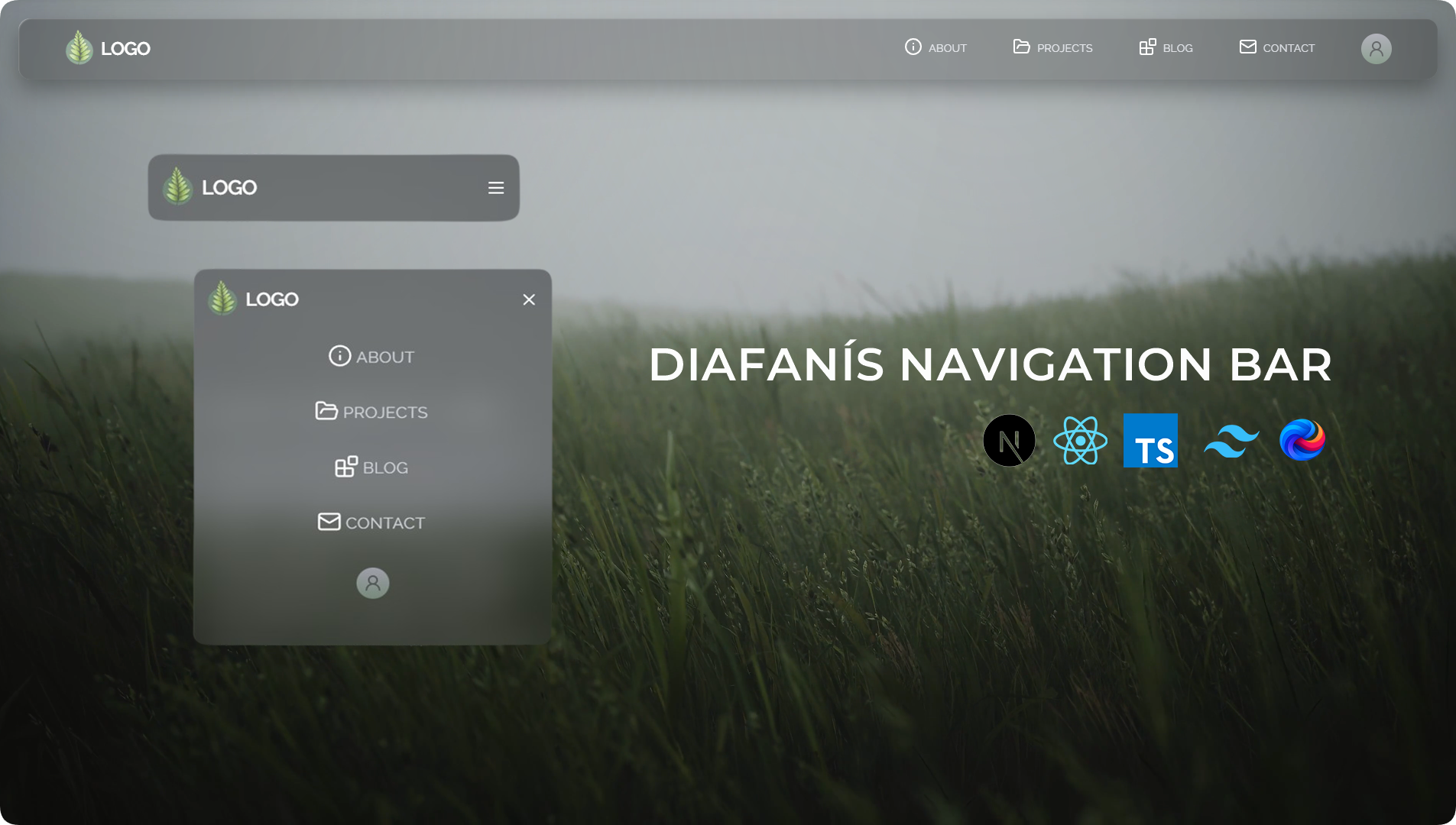
In this article, we’ll build a modern, animated, and fully responsive navigation bar from scratch, starting from a fresh Next.js installation and ending with a polished, production-ready component.
You don’t need any prior setup — if you follow this guide step by step, you will be able to recreate the exact navigation bar used in the Diafanis Navigation Bar app.
We’ll cover everything:
-
Creating a Next.js project
-
Installing and configuring dependencies
-
Setting up Tailwind CSS
-
Building reusable components
-
Handling mobile state and animations
-
Integrating the navbar globally
links
- Live Project: coming soon
- Source Code: coming soon
- Video Tutorial: coming soon
Step 0: Creating the Next.js Project
We start by creating a brand-new Next.js application using the official CLI.
npx create-next-app@latest app name
During the setup, choose the following options:
-
TypeScript → Yes (recommended)
-
ESLint → Yes
-
Tailwind CSS → Yes
-
App Router → Yes
-
src/ directory → Optional (this project does not use it)
Once finished, move into the project folder:
cd your app name
Start the development server to confirm everything works:
npm run dev
Open
http://localhost:3000 in your browser.This navigation bar relies only on core Next.js and React features, so the dependency list stays minimal.
Make sure the following packages are installed:
Tailwind CSS is already configured if you selected it during setup. No additional UI or animation libraries are required.
This keeps the project:
-
Lightweight
-
Easy to maintain
-
Free of unnecessary abstractions
Optional Fix: CSS Import Warning in the Editor
In some setups, your editor or TypeScript may show a warning or error when importing
globals.css, even though the app runs correctly.This usually happens because TypeScript doesn’t know how to type non-JavaScript assets like CSS files.
The fix
You can silence this warning by creating a declaration file in the root of your project.
Create a file named:
globals.d.ts
Add the following content:
// globals.d.ts
declare module '*.css';
declare module '*.scss';
declare module '*.sass';
Why this works
-
This file tells TypeScript that CSS and style files are valid modules
-
It prevents editor warnings and red squiggles
-
It does not affect runtime behavior
-
It’s especially useful in strict or custom TypeScript setups
This step is optional, but recommended if you want a clean, warning-free editor experience.
Assets in public folder
If you want to have access to the logo, image and video wallpapers used in this project, you can download them here:
Globals.css and the transparent effect
Now Let's talk about the transparent, glassy effect, this is possible and thanks to you can achieve the style manually but Glass3d generates it in an easy way and you can actually pick many styles from it, I want to thank them for their work in this note.
Here's the full globals.css file:
@import "tailwindcss";
@import "tw-animate-css";


/* ===== This fixed height is optional and not mandatory it's here to demonstrate how the glass style behaves traversing above the rest of the content ===== */
html,
body {
  height: 120%;
}


/* ===== The fonts used for this project this will make sense later as you keep reading ===== */
@layer base {
  body, p {
    font-family: var(--font-poppins), sans-serif;
  }


  h1, h2, h3, h4, h5, h6, link, a, button, li {
    font-family: var(--font-raleway), sans-serif;
  }
}


/* ===== Background Video ===== */
.bg-video {
  position: fixed;
  inset: 0;
  width: 100vw;
  height: 100vh;
  object-fit: cover;
  z-index: -10;
  pointer-events: none;

  /* Hard fallback if video fails to load */
  background-image: url("../public/wallpaper.jpg");
  background-size: cover;
  background-position: center;
  background-repeat: no-repeat;
}


/* ===== THE STYLING BEHIND THE GLASS, TRANSPARENT EFFECT IN THE NAVBAR GENERATED BY https://glass3d.dev/ ===== */
.glass3d {
  --filter-glass3d: blur(22px) brightness(0.75) saturate(0.8);
  --color-glass3d: transparent;
  --noise-glass3d: none;
  position: relative;
  z-index: 4;
  box-shadow: -1px 15px 31px 0px rgba(0,0,0,0.36);
  -webkit-box-shadow: -1px 15px 31px 0px rgba(0,0,0,0.36);
  -moz-box-shadow: -1px 15px 31px 0px rgba(0,0,0,0.36);
}

.glass3d::before {
  content: "";
  position: absolute;
  inset: 0;
  pointer-events: none;
  border-radius: inherit;
  overflow: hidden;
  z-index: 3;

  -webkit-backdrop-filter: var(--filter-glass3d);
  backdrop-filter: var(--filter-glass3d);
  background-color: var(--color-glass3d);
  background-image: var(--noise-glass3d);
  background-size: 100px;
  background-repeat: repeat;
}

.glass3d::after {
  content: "";
  position: absolute;
  inset: 0;
  pointer-events: none;
  border-radius: inherit;
  overflow: hidden;
  z-index: 5;
  box-shadow:
    inset 2px 2px 1px -3px hsl(205 20% 90% / 0.8),
    inset 4px 4px 2px -6px hsl(205 20% 90% / 0.3),
    inset 1.5px 1.5px 1.5px -0.75px hsl(205 20% 90% / 0.15),
    inset 1.5px 1.5px 0.25px hsl(205 20% 90% / 0.03),
    inset 0 0 0.25px 0.5px hsl(205 20% 90% / 0.03);
}

.glass3d > * {
  position: relative;
  z-index: 6;
}
Step 1: Project Structure
Before writing code, let’s organize our components.
Inside the project root, create a
components/ folder:components/
Inside it, create the following files:
components/
├── Navbar.tsx
├── NavItem.tsx
Each icon is separated into its own component to keep the navbar clean and readable.
In addition to show how it would look with real content I've created a dummy component inside the components folder (this dummy component is not necessary and or mandatory and it's only there for demonstration purposes):
components/
├── Navbar.tsx
├── NavItem.tsx
├── Dummy.tsx
Dummy.tsx:
import React from 'react'
const Dummy = () => {
  return (
    <section>
      <div className='flex flex-col mx-auto'>
        <div className='flex flex-row'>
            <h1 className='pb-5 lg:pb-12 text-2xl text-center lg:text-7xl lg:text-left text-white'>DUMMY SKELETON TITLE HERE</h1>
        </div>
        <p className=' text-sm lg:text-md'>Lorem ipsum dolor sit amet consectetur, adipisicing elit. Est atque ullam doloremque rerum aliquid. Aspernatur tempore
        dolor alias odio labore consequuntur fugit mollitia libero tenetur accusamus ad repellat eius obcaecati minus optio natus expedita facere, vero, rerum accusantium
        nesciunt, praesentium incidunt quod? Dolor corrupti a reprehenderit dolorum quam quibusdam neque aspernatur! Deleniti ea ducimus soluta eos, a obcaecati magni iusto
        est impedit asperiores blanditiis labore natus! Quia eius molestiae placeat. Architecto cum aliquid alias nostrum quisquam, autem beatae aliquam voluptate error fuga
        laborum soluta reprehenderit cumque rerum doloribus esse fugit eveniet fugiat sapiente aspernatur earum doloremque unde voluptatibus nulla? Consectetur maxime
        exercitationem quod cumque beatae ipsa quaerat ab maiores, temporibus ea perferendis vel corrupti. <br/>
        Labore, placeat? Optio vel cupiditate nesciunt nostrum quibusdam, quisquam exercitationem expedita, maiores repellendus esse aspernatur dicta, praesentium minus beatae.
        Quia cupiditate repellendus aut eligendi voluptatibus voluptates rem dolor fugit adipisci voluptatem totam, suscipit deleniti itaque officia quasi ea,
        facere culpa earum.<br/><br/>
        Explicabo accusamus odio consectetur, aspernatur aliquam aperiam dignissimos labore commodi distinctio ut vitae sunt temporibus tenetur tempore consequatur amet maxime
        necessitatibus, delectus dolor sed? Aspernatur, labore explicabo doloremque, molestias maiores error vel tenetur quo magni, adipisci obcaecati consequatur veritatis ea
        neque nemo fugiat inventore? Ea eaque doloribus doloremque autem debitis animi totam veritatis pariatur impedit dicta veniam ad porro expedita optio velit amet esse odio,
        laboriosam atque sequi facere? Fugit accusamus voluptatem minus, quod cumque eaque nisi, porro doloremque harum, esse asperiores repellendus nostrum illum et dolor
        excepturi iste enim nam facere vel ipsum ratione. Quibusdam molestias cumque ex incidunt nisi consequuntur sed eaque! Cumque, assumenda enim dolorum neque quod nihil sit
        ipsa magni atque in porro ullam accusantium quidem sed aspernatur facere sunt eos consequatur maiores molestiae amet obcaecati quae voluptate soluta! Quo, vel!
        Quis tenetur sunt ex vitae soluta tempore reprehenderit, adipisci non.<br/><br/>

        At sequi dolorem qui maxime. Quae, ad. Quas deserunt accusamus delectus impedit sapiente! Ullam aut est sint veritatis, dolore maiores inventore doloribus unde veniam
        eum deleniti velit cum quia consequuntur, accusamus asperiores natus tempora praesentium ipsa mollitia suscipit nam. Ab vero quibusdam quaerat? Illo sunt doloribus
         porro omnis animi deserunt, minima laudantium assumenda iste nemo maxime nobis cum blanditiis cupiditate distinctio, recusandae totam esse alias rem iure necessitatibus
         nam voluptas. Ipsum delectus cum minima, hic amet modi ipsa tenetur ullam perspiciatis id aliquid commodi quaerat dolor sequi fugiat voluptate consequatur laboriosam tempore
         tempora magni ducimus voluptatem magnam.<br/><br/> Illo eos quam, natus magnam consectetur expedita dolor perspiciatis porro quis facilis! Perspiciatis, illum similique
         reprehenderit delectus numquam quibusdam! Quo ullam libero hic impedit expedita repellat, blanditiis nemo. Vel natus similique labore numquam dolorum animi, tempora dolores,
         eum iure earum facere quos assumenda totam. Vel temporibus illo sed totam eligendi facilis ipsam sapiente officiis cum. Suscipit blanditiis vel maiores iure ea labore.
         Commodi eius dolores perferendis officia voluptate, sit eveniet aliquid placeat hic! Repudiandae vel accusamus nesciunt est, ducimus iste ipsam. Ducimus natus et commodi
         sit beatae, aliquid, eligendi tempore eveniet architecto soluta unde quaerat sequi dolore quibusdam repudiandae illo, iure placeat. Quia.</p>
      </div>
    </section>
  )
}
export default Dummy
Step 2: Creating Reusable Nav Items
Instead of going head to head with building the Navbar we will build the reusable animated icons component first with this approach we will avoid duplicating markup for every link, we create a reusable
NavItem component.Responsibilities of NavItem.tsx
-
Wraps Next.js
Link -
Accepts an icon component
-
Accepts a label
-
Optionally closes the mobile menu on click
This makes the navbar scalable and easy to extend.
To add a new link later, you only need to add one new
<NavItem /> instance.Step 3: Icon Components (AnimateIcons + shadcn)
Instead of manually creating icon components, this project uses AnimateIcons integrated through shadcn/ui. This setup automatically generates icon components for us, keeping everything consistent and animated out of the box.
The icons are added using the shadcn CLI, which creates the files directly inside your project thanks to:
Installing the icons
Each icon is installed individually using the following commands (note that you can use icons of your choice from the link provided above):
# Mobile menu (hamburger)
npx shadcn@latest add "https://animateicons.in/icons/menu.json"

# Mobile close icon
npx shadcn@latest add "https://animateicons.in/icons/X.json"

# About us icon
npx shadcn@latest add "https://animateicons.in/icons/info.json"

# Projects icon
npx shadcn@latest add "https://animateicons.in/icons/folder-open.json"

# Blog icon
npx shadcn@latest add "https://animateicons.in/icons/blocks.json"

# Sign in / user icon
npx shadcn@latest add "https://animateicons.in/icons/user-round.json"
What happens when you run these commands
-
The icon components are automatically generated
-
Files are placed in your components directory (following shadcn conventions)
-
Icons come with built-in animation support
-
No manual SVG handling is required
This means files like
MenuIcon.tsx or XIcon.tsx are not handwritten — they are created for you by the CLI.Why this approach is powerful
-
Consistent animated icons across the app
-
Zero SVG boilerplate
-
Easy to swap or add new icons
-
Clean and readable navbar component
Once installed, you can import and use these icons like any other React component inside your navbar.
Things to note
Since Typescript wants you to be very specific there's a line in every icon file generated that you should replace so it doesn't strike you with a warning:
identify and replace this line on every generated icon file:
else onMouseEnter?.(e as any);
with this one:
else onMouseEnter?.(e as React.MouseEvent<HTMLDivElement>);
The warning will go away, additionally, copilot can easily do this if you happen to use it.
After all that is taking care, proceed to build the NavItem.tsx, here the full file logic:
"use client";
import Link from "next/link";
import { useRef } from "react";

interface AnimatedIconHandle {
  startAnimation: () => void;
  stopAnimation: () => void;
}

interface IconProps {
  isAnimated: boolean;
  className?: string;
}

interface NavItemProps {
  href: string;
  icon: React.ForwardRefExoticComponent<
    React.PropsWithoutRef<IconProps> & React.RefAttributes<AnimatedIconHandle>
  >;

  children: React.ReactNode;
  className?: string;
  iconClassName?: string;
  onClick?: () => void;
}


export function NavItem({
  href,
  icon: Icon,
  children,
  className = "",
  iconClassName = "",
  onClick,
}: NavItemProps) {
  const iconRef = useRef<AnimatedIconHandle>(null);
  const start = () => iconRef.current?.startAnimation();
  const stop = () => iconRef.current?.stopAnimation();

  return (
    <Link
      href={href}
      onClick={onClick}
      onMouseEnter={start}
      onMouseLeave={stop}
      onFocus={start}
      onBlur={stop}
      className={`
        group relative inline-flex items-center leading-none gap-2
        transition-colors
        ${className}
      `}
    >

      {/* Icon */}
      <Icon
        ref={iconRef}
        isAnimated={false}
        className={iconClassName}
      />


      {/* Text */}
      <span className="relative mt-1 uppercase tracking-wide text-[20px] md:text-sm text-gray-300 hover:text-white transition-all duration-300">
        {children}

        {/* Underline hover animation */}
        <span
          className="
            pointer-events-none
            absolute left-0 -bottom-1 h-px w-full
            origin-left scale-x-0
            bg-current
            transition-transform duration-300 ease-out
            group-hover:scale-x-100
            group-focus-visible:scale-x-100
          "
        />
      </span>
    </Link>
  );
}
Step 4: Creating the Navbar Component
The navbar requires interactivity, so it must be a client component.
At the top of
Navbar.tsx, add:"use client";
Then import the necessary hooks and components:
import { useState } from "react";
import NavItem from "./NavItem";
import MenuIcon from "./MenuIcon";
import XIcon from "./XIcon";
Create the component and mobile state:
const [isOpen, setIsOpen] = useState(false);
Why this state matters
-
Controls whether the mobile menu is visible
-
Determines which icon is displayed
-
Allows smooth UX without complex logic
Step 5: Structuring the Navbar Layout
The navbar layout is divided into three sections:
-
Logo / Brand
-
Desktop navigation
-
Mobile toggle button
Using Tailwind CSS utilities, we achieve this with Flexbox:
-
flexfor layout -
justify-betweenfor spacing -
items-centerfor vertical alignment
Desktop links are hidden on small screens using:
hidden md:flex
The mobile toggle button does the opposite:
md:hidden
Here the full file:
"use client";

import React, { useState } from "react";
import Link from "next/link";
import Image from "next/image";
import { MenuIcon } from "./MenuIcon";
import { XIcon } from "./XIcon";
import { InfoIcon } from "./InfoIcon";
import { FolderOpenIcon } from "./FolderOpenIcon";
import { BlocksIcon } from "./BlocksIcon";
import { MailIcon } from "./MailIcon";
import { UserRoundIcon } from "./UserRoundIcon";

import { NavItem } from "./NavItem";

const Navbar: React.FC = () => {
  const [isOpen, setIsOpen] = useState(false);
  return (
    <header className="fixed top-0 left-0 right-0 z-50 px-6 pt-6">
      <div className="rounded-2xl glass3d text-white">
        <nav className="mx-auto flex h-20 items-center justify-between px-4 sm:px-6 lg:px-15">

          {/* Logo */}
          <div className="flex items-center">
            <Link href="/" className="text-2xl font-semibold tracking-tight flex flex-row items-center">
              <Image src="/logo.png" alt="Logo" width={40} height={36} className="inline-block mr-2 mb-1"/>
              LOGO
            </Link>
          </div>

          {/* ------------------------------------- Desktop Menu -------------------------------------- */}

          <ul className="hidden items-center md:gap-8 lg:gap-15 md:flex">
            <li>
              <NavItem href="#about" icon={InfoIcon}>
                About
              </NavItem>
            </li>

            <li>
              <NavItem href="#projects" icon={FolderOpenIcon}>
                Projects
              </NavItem>
            </li>

            <li>
              <NavItem href="#blog" icon={BlocksIcon}>
                Blog
              </NavItem>
            </li>

            <li>
              <NavItem href="#contact" icon={MailIcon}>
                Contact
              </NavItem>
            </li>


            {/* Signin Button */}
            <li>
              <Link
                href="#signin"
                title="Sign in"
                className="rounded-full bg-linear-to-b from-zinc-400 to-[#778a7b] p-2 text-[#525556] flex justify-center hover:text-white transition"
              >
                <UserRoundIcon />
              </Link>
            </li>
          </ul>


          {/* Mobile Menu Button */}

          <button
            aria-label={isOpen ? "Close menu" : "Open menu"}
            aria-expanded={isOpen}
            onClick={() => setIsOpen(!isOpen)}
            className="md:hidden inline-flex items-center justify-center"
          >
           {isOpen ? <XIcon/> : <MenuIcon />}
          </button>
        </nav>


        {/* --------------------------------- Mobile Menu ---------------------------------- */}

        <div
          className={`md:hidden transition-all duration-300 ease-in-out ${
            isOpen ? "max-h-200 opacity-100" : "max-h-0 opacity-0"
          } overflow-hidden`}
        >
          <ul className="flex flex-col gap-10 px-4 pb-15 pt-5 justify-center items-center">
            <li>
              <NavItem href="#about" icon={InfoIcon} onClick={() => setIsOpen(false)} iconClassName="scale-125">
                About
              </NavItem>
            </li>

            <li>
              <NavItem href="#projects" icon={FolderOpenIcon} onClick={() => setIsOpen(false)} iconClassName="scale-125">
                Projects
              </NavItem>
            </li>

            <li>
              <NavItem href="#blog" icon={BlocksIcon} onClick={() => setIsOpen(false)} iconClassName="scale-125">
                Blog
              </NavItem>
            </li>

            <li>
              <NavItem href="#contact" icon={MailIcon} onClick={() => setIsOpen(false)} iconClassName="scale-125">
                Contact
              </NavItem>
            </li>

            {/* Mobile Signin Button */}

            <li>
              <Link href="#signin" title="Sign in" className="rounded-full bg-linear-to-b from-zinc-400 to-[#778a7b] p-2 text-[#525556] flex justify-center hover:text-white transition">
                <UserRoundIcon />
              </Link>
            </li>
          </ul>
        </div>
      </div>
    </header>
  );
};

export default Navbar;
Outcome in layout.tsx and page.tsx
layout.tsx (using Raleway and Poppins fonts but you can use your own):
import type { Metadata } from "next";
import { Raleway, Poppins } from "next/font/google";
import "./globals.css";
import Navbar from "@/components/Navbar";


const raleway = Raleway({
  subsets: ["latin"],
  variable: "--font-raleway",
  weight: ["400", "500", "600", "700"],
});

const poppins = Poppins({
  subsets: ["latin"],
  variable: "--font-poppins",
  weight: ["300", "400", "500", "600"],
});


export const metadata: Metadata = {
  title: "Diafanís Navigation Bar",
  description: "A sleek and modern navigation bar component built with Next.js and Tailwind CSS.",
};


export default function RootLayout({
  children,
}: {
  children: React.ReactNode;
}) {
  return (
    <html lang="en">
      <body className={`${raleway.variable} ${poppins.variable} antialiased`}>

        {/* Background Video */}
        <video className="bg-video" autoPlay loop muted playsInline>
          <source src="/wall.mp4" type="video/mp4" />
        </video>

        <Navbar />

        {/* Offset for fixed navbar */}
        <main className="pt-42 relative z-10">
          {children}
        </main>
      </body>
    </html>
  );
}
page.tsx:
import Dummy from "@/components/Dummy";

export default function Home() {
  return (
  <section className="m-6 text-gray-300 px-4 sm:px-6 lg:px-15">
    <Dummy/>
  </section>
  );
}
Final Thoughts
This navigation bar demonstrates a solid real-world approach to building UI components in Next.js:
-
Component-driven architecture
-
Minimal state management
-
Mobile-first responsiveness
-
Clean, readable code
Because everything is modular, you can easily:
-
Add authentication buttons
-
Integrate dropdowns
-
Animate route changes
-
Connect it to global state
If you’re building a portfolio or production app, this pattern scales extremely well.
Happy coding 🚀
 DONATE