
5/8/2025 · 3 min read
Adding PrismJS to Your Blog Without Losing Your Mind
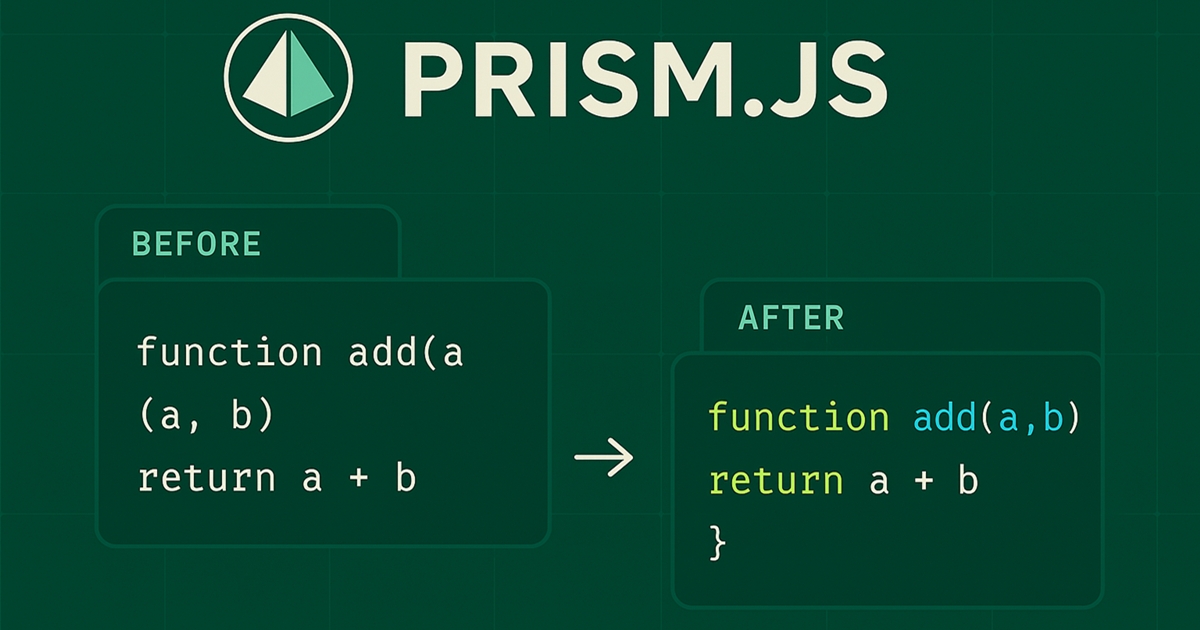
If you’re building a blog or a documentation site where code readability matters, PrismJS is a lightweight and flexible solution for syntax highlighting. Here's a simple, step-by-step guide to integrate PrismJS into your project—from install to full implementation.
1. Install PrismJS via npm or any alt
It could be either Yarn or npm relies on preference.
npm install prismjs
You’ll also want a theme. Prism includes several, and you can import one like this:
import 'prismjs/themes/prism-tomorrow.css'; // Or any theme you like
🔎 You can find more themes here:
2. Import PrismJS and Languages
By default, Prism only includes basic languages. If you want to highlight specific ones (like JSX, TypeScript, etc.), import them manually:
import Prism from 'prismjs';
import 'prismjs/components/prism-jsx';
import 'prismjs/components/prism-typescript';
import 'prismjs/components/prism-bash';
// add more as needed
3. Highlight After Render
Prism needs to be triggered after your code blocks render. Use useEffect in a component like this:
import { useEffect } from 'react';
import Prism from 'prismjs';

const BlogContent = ({ content }) => {
  useEffect(() => {
    Prism.highlightAll();
  }, [content]);

  return (
    <div
      className="prose max-w-none"
      dangerouslySetInnerHTML={{ __html: content }}
    />
  );
};
4. How to Generate Code Blocks
If you're rendering markdown (MDX or from CMS), make sure your code blocks have a language- class:
<pre><code class="language-jsx">
const Hello = () => <h1>Hello, Prism!</h1>;
</code></pre>
This tells Prism how to highlight it.
What We Achieved
-
✅ PrismJS installed and configured
-
✅ Syntax highlighting for JSX, TS, Bash, and more
-
✅ Theming via Prism's built-in styles
-
✅ Auto-highlight on content render
-
✅ Markdown/CMS-ready with dangerouslySetInnerHTML
Custom Styles as bonus
You can customize Prism styles using your own CSS or Tailwind:
code[class*="language-"] {
  font-size: 0.9rem;
  background-color: #1e1e1e;
  padding: 0.25rem 0.5rem;
  border-radius: 0.25rem;
}
This is the actual custom theme you are seeing on my code bocks:
/* override PrismJS default background */

pre[class*="language-"] {
  background: #181818 !important; /* your custom dark color */
  border-radius: 0.5rem;
}

span.token.string{
  color: #7ea444 !important;
}

span.token.property{
  color: #f8c555 !important;
  filter: drop-shadow(0 0 0.5px #f8c555) contrast(1) brightness(1) !important;
}

span.token.keyword{
  color: #f68003 !important;
  filter: drop-shadow(0 0 1px #f68003) contrast(1) brightness(1.1) !important;
}

span.token.operator{
  color: #03f6cd !important;
  filter: drop-shadow(0 0 2px #03f6cd) contrast(1) brightness(1) !important;
}

span.token.parameter{
  color: #03f6cd !important;
  filter: drop-shadow(0 0 2px #03f6cd) contrast(1) brightness(1) !important;
}

span.token.variable{
  color: #97db4f !important;
  filter: drop-shadow(0 0 2px #97db4f) contrast(1) brightness(1) !important;
}

span.token.comment{
  color: #627155 !important;
}

span.token.function{
  color: #9bfd33 !important;
  filter: drop-shadow(0 0 3px #9bfd33) contrast(1) brightness(1) !important;
}

span.token.interpolation{
  color: #ffffff !important;
  filter: drop-shadow(0 0 2px #ffffff) contrast(1) brightness(1) !important;
}
I know its Ugly and of course its up to changes but this is how you do it.
PrismJS gives your blog professional-looking code blocks with just a little setup. Perfect for tech blogs, documentation, or tutorials.
Let your code shine! 💡
Let your code shine! 💡
 DONATE